
Introducing the AirPulse MCP.
Your AirPulse data now works inside your AI assistant. Connect AirPulse to Claude, ChatGPT, Cursor, VS Code or Claude Code, then ask about your AI visibility in your own words.
Why we built it.
Teams told us the same thing on calls. They want all their data in one place, and they want to ask about it from the assistant they already use. So we built it. The AirPulse MCP is live.
It gives your assistant direct access to your visibility by engine, your competitors, the stored AI answers and citations behind each number, and your GEO audit findings and tasks.
What an MCP is, and what this one does.
MCP stands for Model Context Protocol. It is the open standard that lets an AI assistant use another product's data and tools. The AirPulse MCP is a server that speaks that standard, so your assistant can read your AirPulse account when you ask it a question.
You ask
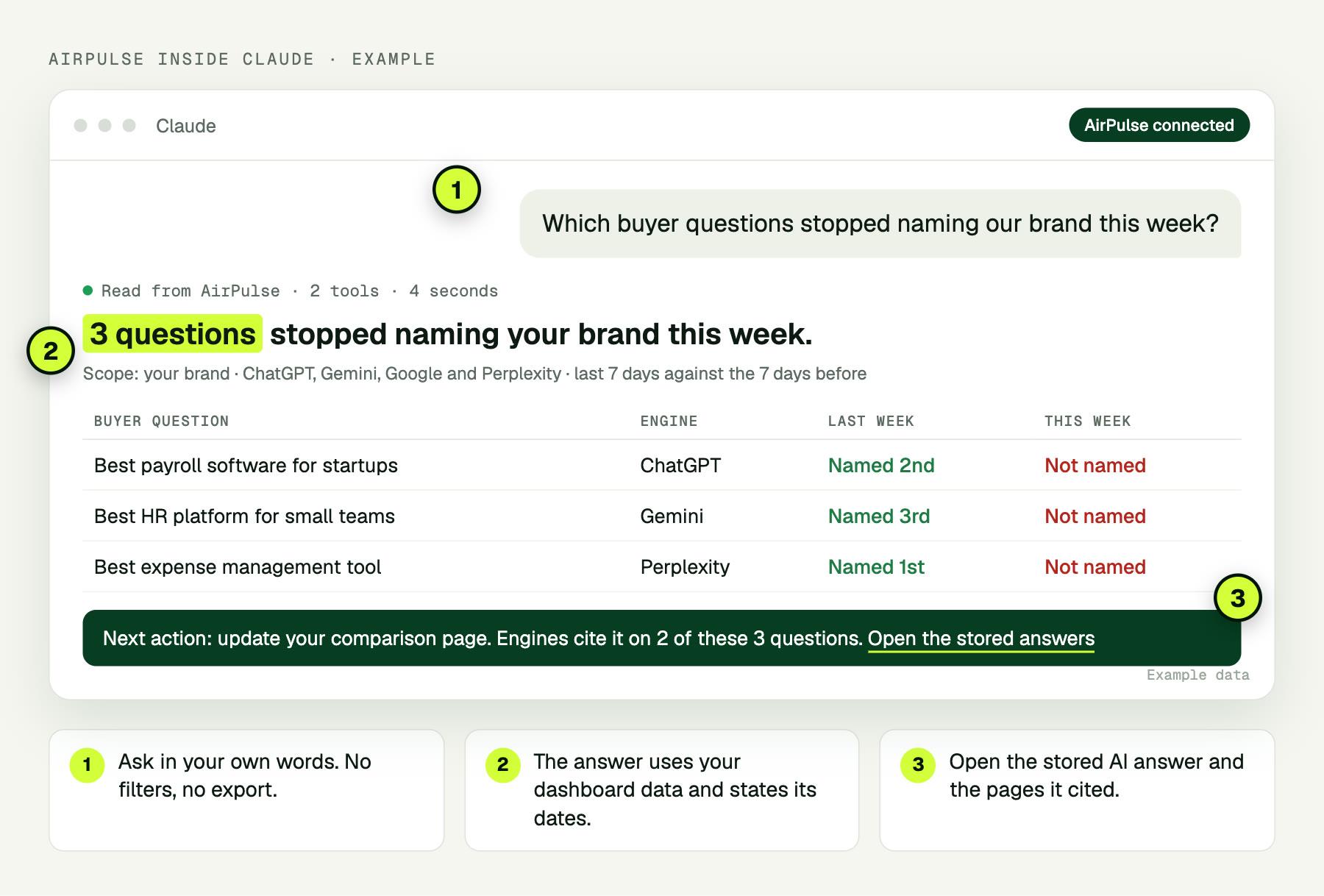
Type the question the way you would ask a colleague. You do not need to know which report holds the answer.
The assistant calls AirPulse
Your assistant picks the right AirPulse tool, for example the one that returns visibility by engine, and sends your question's brand and date range.
AirPulse returns the dashboard number
The server answers with the same figure the dashboard shows, with its brand, engines and dates attached. The assistant does not recalculate it.
You follow the evidence
Ask what is behind a number and the assistant opens the stored AI answer and the pages that the engine cited.
What you get from it.
Your numbers in seconds
Ask a question in plain language. You do not open a dashboard, set a filter or export a file.
One source of truth
Each answer uses the same data as your dashboard and states its dates, so the number in the chat is the number in the app.
The proof behind each number
Open the stored AI answer and the pages that each engine cited.
Fixes that reach your developers
Hand GEO audit findings to the codebase that must change. Your developer asks which fixes are open and which are done.
Questions to ask on day one
- Chart our visibility for the last two weeks, engine by engine.
- Which competitors are named ahead of us on our top buyer questions?
- Show me the exact ChatGPT answer for this prompt, and the pages it cited.
- List the open GEO audit findings for our pricing page and turn them into tasks.
- Which buyer questions stopped naming our brand this week?
Connect in three steps.
You need an AirPulse login and an assistant that supports MCP. There is no token to copy.
AirPulse app · where to find the MCP
2. Add custom connector, and paste the server URL above.
3. Click Connect and sign in with AirPulse.
Open the MCP page and copy the server URL
In the AirPulse sidebar, look under Foundation and select MCP. It is below Brand Settings.
Add it to your assistant as a connector
Copy the server URL and paste it into the assistant that your team uses. The URL is the same for every workspace.
Sign in with your AirPulse login
Select your assistant's tab for its steps, then sign in with your normal login and select your workspace.
The server URL
Paste this into your assistant. In Claude it takes two screens: add the custom connector, then sign in and select your workspace.
https://prod-api.airpulse.ai/mcp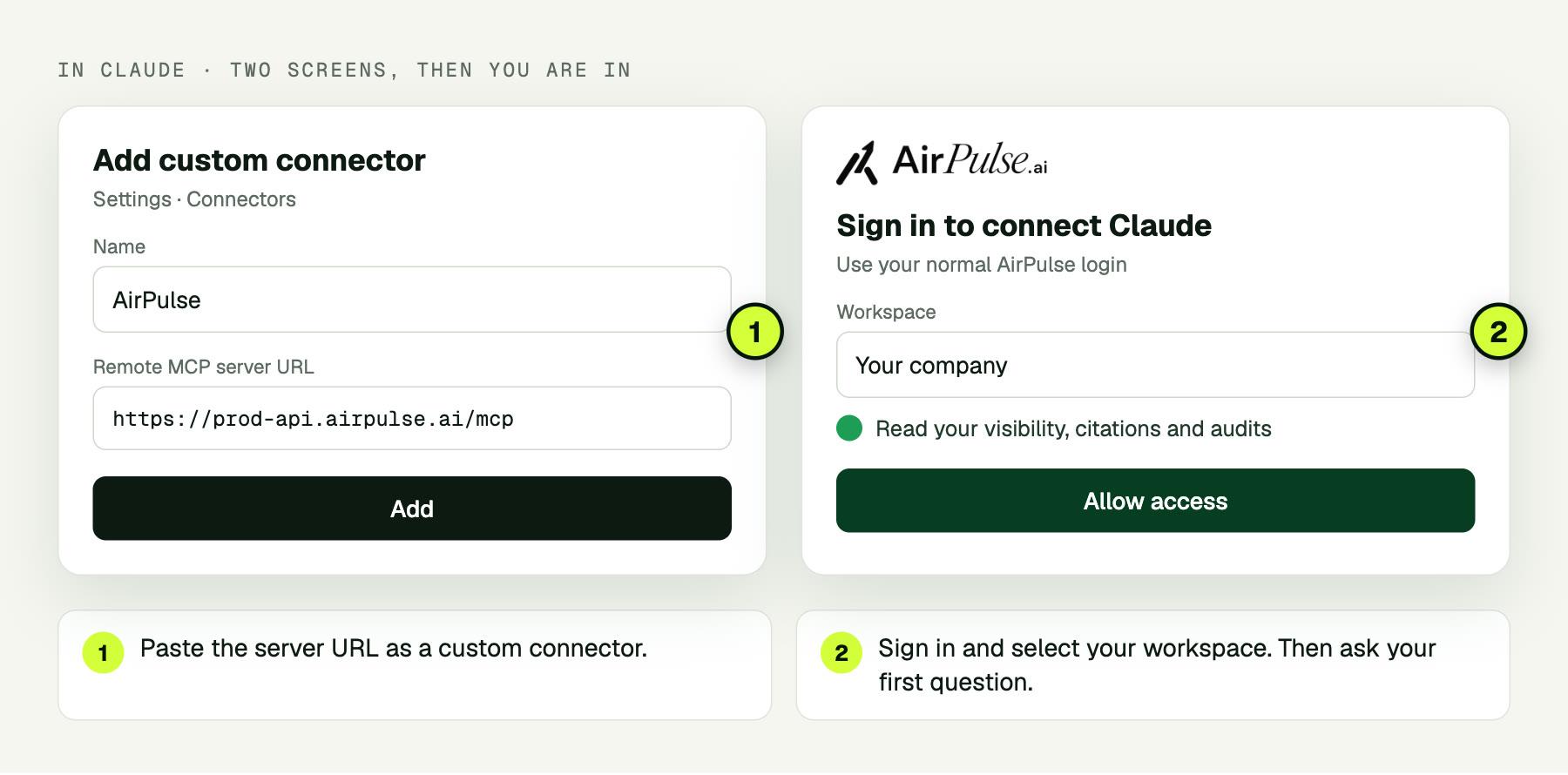
Steps for each assistant
Claude
- Open Settings, then Connectors.
- Add a custom connector and paste the server URL.
- Click Connect and sign in with AirPulse.
ChatGPT
- Open Settings, then Connectors.
- Add a connector and paste the server URL. Your ChatGPT plan must support custom connectors.
- Sign in with AirPulse.
Claude Code
- Run the command below in your terminal.
- Run
/mcpin Claude Code and choose Authenticate.
claude mcp add --transport http airpulse https://prod-api.airpulse.ai/mcpCursor and VS Code
- Add the block below to
.cursor/mcp.json, or to themcp.jsonfile in VS Code. No headers are needed. - Sign in with AirPulse when the editor asks.
{
  "mcpServers": {
    "airpulse": {
      "url": "https://prod-api.airpulse.ai/mcp"
    }
  }
}
Other assistants and agents that support remote MCP servers connect with the same URL. For scripts, CI and clients that cannot sign in, create an access token on the MCP page.
What the assistant can read.
The server has 31 tools at launch. Twenty of them read data, and every member can use them. The other eleven take actions, and they stay off until an admin allows them.
Visibility and competitors
Visibility score, share of voice and position by engine, how you compare with each tracked competitor, and the definition of every metric.
get_brand_visibilityget_competitor_comparisonget_brand_healthget_metric_definitions
Answers and citations
The stored answer behind every number, the pages each engine cited, and which of those pages are yours.
list_prompt_responsesget_prompt_responseget_citationslist_citation_pages
GEO audits and tasks
Audit runs, each finding with its evidence, the tasks the findings became, and the status of an audit in progress.
list_auditsget_audit_findingsget_audit_findinglist_audit_tasksget_job_status
Brand context
Your brands, brand profile, tracked prompts and topics, and search across the knowledge base that AirPulse writes from.
list_brandsget_brand_profileget_brand_topicslist_brand_promptskb_searchkb_list_sourceskb_read_page
Actions an admin can allow
With actions on, the assistant can do the work as well as report on it.
Your data stays under your control.
MCP access is rolling out workspace by workspace. If your assistant does not connect, contact us or reply to the launch email and we switch it on for your workspace.
Ask your assistant about your AI visibility.
Open the MCP page in AirPulse, copy the server URL and sign in. New to AirPulse? Book a free strategy call and we show it on your brand.